23. Takes and Sound Files
What it covers: what a take is on disk, how it is kept as it is heard, how to open a recording made elsewhere, and how to keep a long take’s readings without its sound.
Why you’d use it: a take holds the sound itself, not just the figures, so it can be read again later by a newer app, checked from the command line, or sent with a problem report. Knowing where it is and what is in it lets you back it up, move it, or free the disk without losing what matters.
Keeping a Take
Chapter 2 (Stop and Save) gives the Save menu. Beyond it:
- A watch’s take saves itself. A take started from a watch in the Watches view, and a Quick Listen take once kept, records into its folder as it goes: every 5 s of sound is added, so a crash or a power cut costs only seconds. The status bar says “Saved”, and Stop closes the take with no question.
- A test with no watch picked asks where it goes when it ends: Keep in Unsorted (the default), Keep in a Watch… or Throw Away. A test’s sound is always asked about; a Quick Listen take’s never is.
- Save…, in the File menu, keeps the take: into the watch picked, into Unsorted after Quick Listen, and otherwise into a folder you pick. Save Again (Ctrl+S) brings that copy up to date, and Save As… (Ctrl+Shift+S) copies it to a new folder.
- New Session, in the File menu, clears the Bench for the next watch or position. Pressed while listening, listening carries on into the new session.
Sound not yet saved waits in a folder of the app’s own, which the system doesn’t clear. If the app is stopped without asking (a crash, a logout, a shutdown), a test’s unsaved sound is offered at the next start (after a logout or shutdown, only if over 5 s): the status bar shows Unsaved Sound Found…:
| Button | What it does |
|---|---|
| Open | Analyses it here, and offers it again next time. |
| Move To… | Moves its folder into one you pick, to open later with Open Folder…. |
| Delete… | Deletes it, after asking. |
| Later | Leaves it for the next start. |
For a take that was saving itself, all but its last few seconds are already in the take, so the message offers Open Take and Delete Copy… instead.
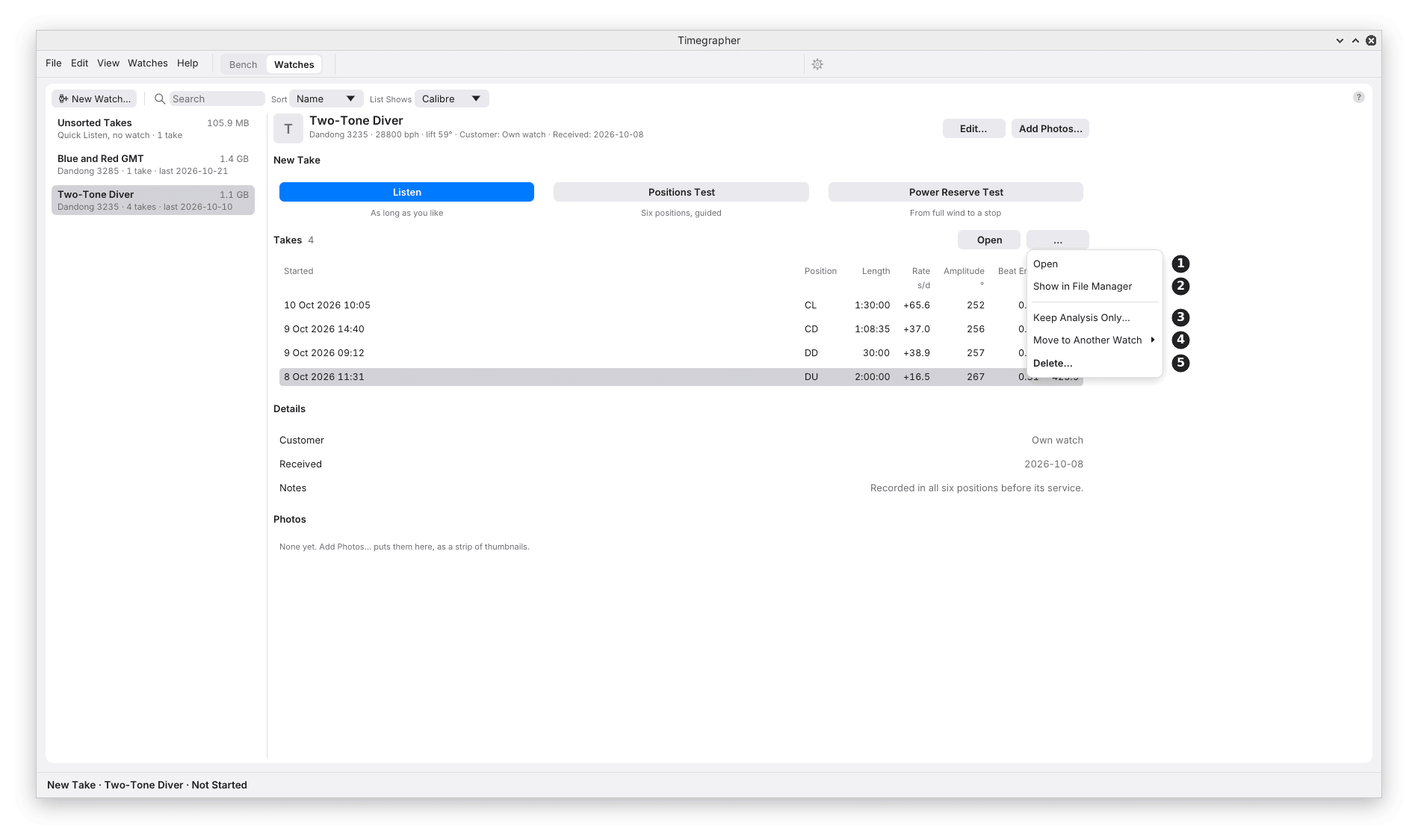
The Take’s Menu
In the Watches view, right-click a take or press … over the table.
| Mark | Item | What it does | Why you’d use it |
|---|---|---|---|
| 1 | Open | Opens the take on the Bench, analysed whole. Greyed out while a take runs on the Bench. | To look back through it. |
| 2 | Show in File Manager | Its folder, in the computer’s own file manager (Finder on a Mac, Explorer on Windows). | To copy, back up or send it. |
| 3 | Keep Analysis Only… | Deletes the take’s sound and keeps its readings (below). | A long take whose sound fills the disk. |
| 4 | Move to Another Watch | Moves it to the watch picked. From Unsorted Takes it reads File Under a Watch. | A take made under the wrong watch, or before the watch was added. |
| 5 | Delete… | Deletes it, after asking, with its size. It can’t be undone. |
A take moved or filed takes the new watch’s name, and the calibre, lift angle and beat rate it sets, and is read again with them. A take kept as its analysis alone keeps what it was measured with.
Keeping the Analysis Only
A long take’s sound is large: 0.35 GB an hour at 48 kHz, 16-bit, before it is kept as FLAC. Two ways keep the readings without it:
- Keep Analysis Only…, in a take’s menu, reads the take once more,
writes its analysis beside it, checks it reads back, and only then
deletes the sound, keeping every other file in the take. It asks
first, giving the take’s size and its sound’s. It is greyed out for a
take whose
session.tomllists its sound files by name, and refused for one with sound in a subfolder or a linked file. - Save Analysis Only…, in the File menu, for a microphone session
once listening has stopped: writes a new folder, named with
_analysison the end, holding the readings and no sound. The sound on the Bench stays unsaved, and Save can still keep it.
What still works on such a take: the readings, the Paper Strip, the charts, Steadiness, the position stretches and the Positions Test. What doesn’t: measuring it again with other settings, and the Scope, which needs the sound. Masks can still be changed. Keep the sound when you may want the take read again by a later version, or sent with a problem report.
Opening a Recording
File > Open Recording… opens a WAV or FLAC file; File > Open Folder… opens a take, or a folder of one run’s files. Dropping a file or folder on the window does the same, except on Wayland. When you have watches, the app first asks where it goes:
- Add to a Watch copies it into the watch picked, or a New Watch…, as a take of its own. It asks only for what neither its files nor the watch say: Beat Rate, Lift Angle, Position and Started.
- Just Open It opens it where it is, not in your watches.
A recording opened is analysed whole, all at once. A take with its
session.toml brings back its watch, calibre, lift angle, beat rate and
position stretches, so Steadiness tests each position on its own.
Without one, the settings go back to their defaults (no watch or
calibre, 52°, the beat rate found, Dial Up), except that a position
named as a word of its own in the file’s name (reverso_DU_01.flac) is
taken.
A folder of segments, such as a recorder’s hourly files or a night
split into 10-minute FLACs, opens as one recording. Its files are joined
in the order its session.toml lists them, otherwise in name order with
a run of digits counted as a number (part2 before part10). When a
file’s date says it was written well before the one joined ahead of it,
the window says so, so a misnamed file shows. A 16-hour night takes some
minutes to read; the window shows the hours done and the time left.
Opening again is fast: the beats found are kept in the system’s cache folder, so a take opens again in seconds. The copy is used only for the same files (each one’s place on disk, length, modified time and samples taken through it), the same settings and the same build; anything else, a take moved or renamed included, reads the sound again.
What Is in a Take
Each take is a folder, named by when it started and its position when it
used only one (2026-10-20 14.32 Dial Up):
| File | What it holds |
|---|---|
audio-001.flac, … | The sound as captured: mono, 16-bit, in files of at most an hour. The hour being recorded is a WAV, kept as FLAC once it closes, checked sample for sample. |
clock.csv | The computer’s time against the sound card’s samples, every 10 s, for the true clock (M3). |
session.json | The watch, position, lift angle, beat rate, input, start and end, position changes, and any break, such as the computer sleeping. |
session.toml | What timegrapher session reads: the watch, calibre, lift angle, beat rate, and each stretch in one position with its start and end. |
positions-test.json | Only after a Positions Test at full wind: its results, for the test 24 hours later (chapter 20). |
At start-up the app keeps as FLAC any hour of a saved take still in WAV, in the background (“Keeping saved takes as FLAC: 2 of 5”). An hour an older version saved at 24 bits, or as floating point, is rounded to 16 bits as it is kept, as every take is now; the readings don’t change. A few unusual sample rates stay WAV.
The Watches folder holds every watch and take:
Timegrapher Data/
  library.toml
  Two-Tone Diver/
    watch.toml
    photos/
    takes/
      2026-10-08 11.31 Dial Up/
  Unsorted/
    takes/
Nothing in it records where it is, so it can be moved, synced or backed up whole. Chapter 24 gives where it is and how to move it.
What to Look For
| What you see | What it can mean |
|---|---|
| A take marked Incomplete | Some of its sound files are missing, often a copy or sync not finished. The app changes nothing in it. |
| The window naming a file out of date order | A segment named out of its place in the run. |
| Unsaved Sound Found at start | A test’s sound from a run that didn’t end normally. |
What It Can’t Tell You
- A take that lost its sound can’t be measured again. Keep Analysis Only can’t be undone.
- Whether a copy elsewhere is whole. A take copied in part shows as Incomplete only where its listed files are missing.
Previous: The Watches View · Next: Settings and Calibres
This page comes from the app's user guide at v1.0.1. See it on GitHub.